
Register your smartcard
← Back to PaperCut Secure Print
Login and set up your card
You may be prompted to do this the first time you print.
PaperCut uses your university smartcard so you can securely release your print jobs at any SecurePrint printer. You only need to link your card to your account once.
Important:
You might see this message on the printer screen:
“Unknown card. Do you wish to associate this card with your user account?”
This message can appear if:
- you are new to the university, or
- you have been issued a replacement smartcard (for example, after renewal)
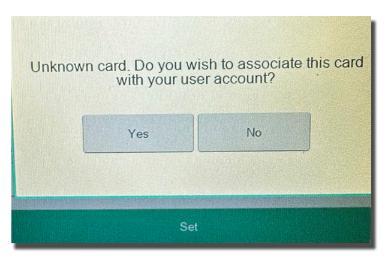
This is expected and does not mean there is a problem with your account. Simply follow the steps below to link your smartcard to PaperCut.
What to do
- Go to any SecurePrint‑enabled printer or copier.
- Tap your university smartcard on the card reader.
- When you see the message about an “unknown card”, select Yes to associate your card.
- Enter your university username and password.
- Use the Shift key if you need uppercase letters or special characters.
- Follow the on‑screen instructions.
Once this is done, your card will be linked and you can use it to print as normal.