
Set up your device for printing
← Back to PaperCut Secure Print
To print from your device, you may need to install the SecurePrint_Staff queue.
University Managed Windows devices
Most devices are already set up with the SecurePrint_Staff queue.
Troubleshooting: SecurePrint_Staff not showing (Windows device)
If the SecurePrint_Staff printer is not available, try the following:
1. Restart your device
- Restart your computer. (As best practice, restart at least once each working day to keep services up to date.)
2. Refresh your printers in the PaperCut client
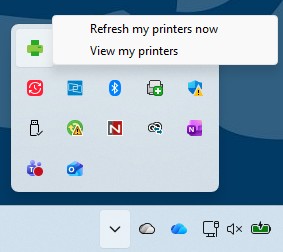
- Right‑click the PaperCut icon (green printer icon) in the taskbar.
- Select Refresh my printers now
3. Still not working?
- Contact the IT Service Desk for support: https://nuservice.ncl.ac.uk
For University Managed MacOS devices, the above is currently not available. Please follow the steps under 'Web App for personal Windows devices, Linux or other devices' to print from your device.
Set up Secure Printing from a non-NUIT managed Mac
If you're using a Mac that isn't managed by the University, you'll need to install the Konica Minolta print driver and add the University SecurePrint queue before you can print. You'll only need to do this once.
Adding the SecurePrint_Staff printer to your Mac
You can also use the SecurePrint Web App option (detailed below) to upload documents when working off campus on a Mac (or any other device).
Web App for personal Windows devices, Linux or other devices
Use the Secure Print Web App - no setup required.
- Go to: https://secureprint.ncl.ac.uk/app
- Log in with your university username and password
- Select Web Print
- Upload your file
- Choose a printer (see options below) and release your print at any SecurePrint device
-
- APPS-PCUT-L2\Mono Single-Sided (virtual)
- APPS-PCUT-L2\Mono Double-Sided (virtual)
- APPS-PCUT-L2\Colour Single-Sided (virtual)
- APPS-PCUT-L2\Colour Double-Sided (virtual)
When selecting a printer, choose the option that matches how you want to print, and make sure you select the correct version for you (staff/student).
Set a default printer (optional)
- Choose your default printer in Windows 10
- Choose your default printer in Windows 11
- Choose your default printer on Mac
Related links
- Print a document
- FAQs and troubleshooting
- Register your smartcard (new staff only)