Mac installation for Office 365 Pro Plus
- Sign in to Office 365 at http://office365.ncl.ac.uk with your userid and password
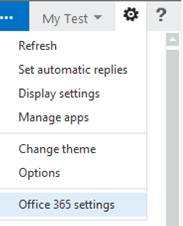
- On the top menu bar click on the settings cog and select Office365 Settings
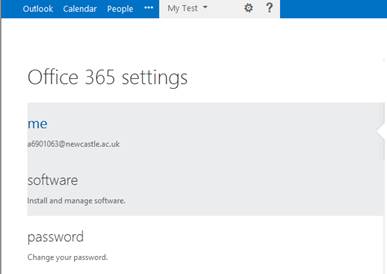
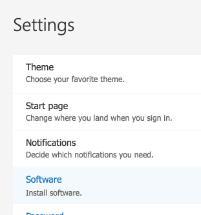
- On the Office 365 Settings page click Software
- Sign in to Office 365 at http://office365.ncl.ac.uk with your userid and password
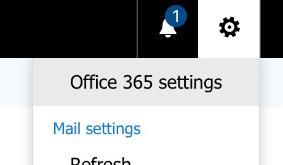
- On the top menu bar click on the settings cog and select Office365 Settings
- On the Office365 Settings tab, click Install software
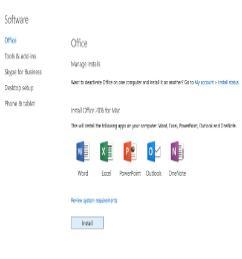
- From the Office software tab, click Install
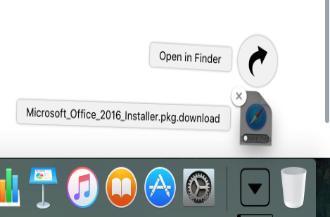
- The download will start (this may take some time depending on the speed of your connection)
- When it is complete click on Microsoft_Office_2016_Installer.pkg
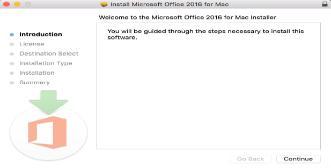
- Click Continue to start the install
- Click Continue to accept the Licence Agreement
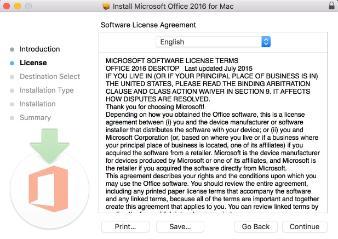
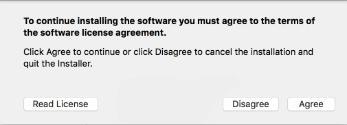
- Click Agree
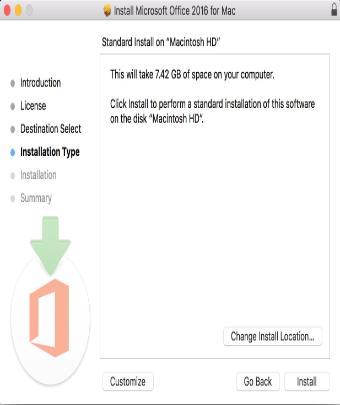
- Choose where you want to install the application and click Install
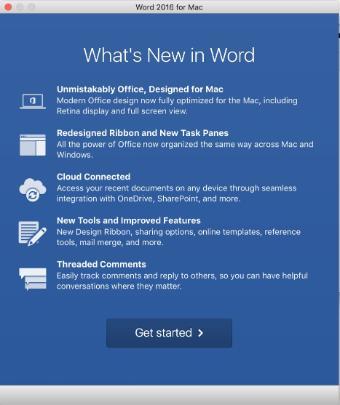
- Once complete, run one of the Office 2016 applications. Word for instance.
- Click Get Started
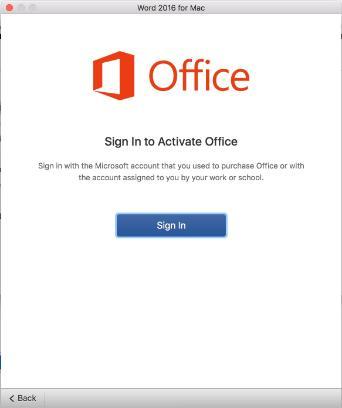
- Click Sign In
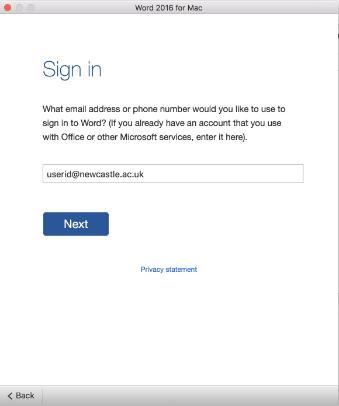
- When you are asked for an account enter your id in the form userid@newcastle.ac.uk and click Next (eg a6901063@newcastle.ac.uk)
- You will now be redirected to the institutional sign-in page. Enter your USERID and password and click Sign In
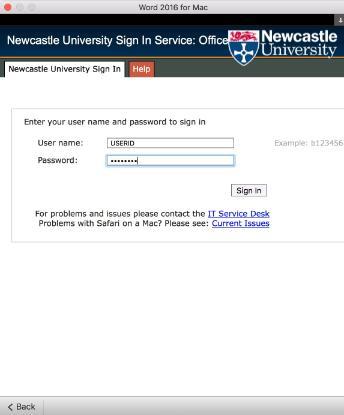
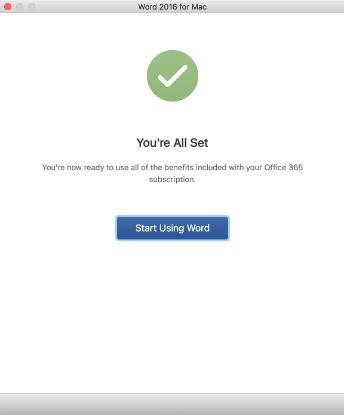
Office 2016 will now activate against your Office365 ProPlus licence and tell you when complete