
Got a new phone? Set up MFA
You will need to authenticate using your old device to complete this process – don't reset your device or reinstall the authenticator app as this will disable the MFA method. Install the Microsoft Authenticator app on your new device from the App Store and Google Play.
If you no longer have your old device, please contact the IT Service Desk.
1. Open your internet browser on your old device and go to: myaccount.microsoft.com
2. Login with your University email and password 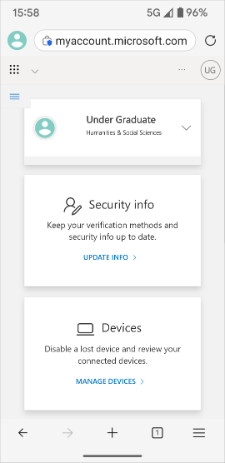
3. You will receive an MFA notification on your old device; approve and enter the two-digit code. Then tap the link under 'Security Info' and ‘Add sign-in method’.
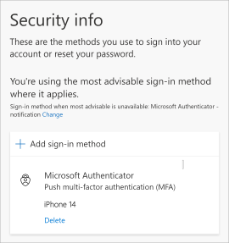
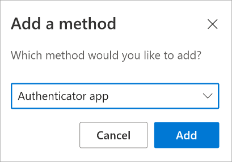
4. From the dropdown list select ‘Authenticator app’ and tap the 'Add' button.
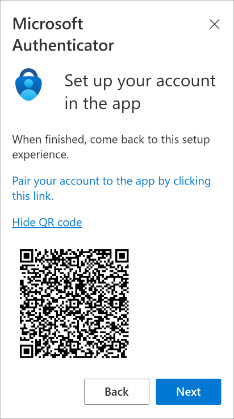
5. Click on 'Next' and 'Show QR code' on the following screen; you will need to scan this using the Authenticator app on your new device.
6. Open the Microsoft Authenticator app on your new device.
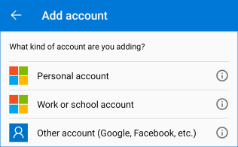
7. Tap the '+' button to add an account and select ‘Work or school account'.
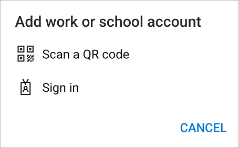
8. Select ‘Scan a QR code’ and scan the code on the other screen.
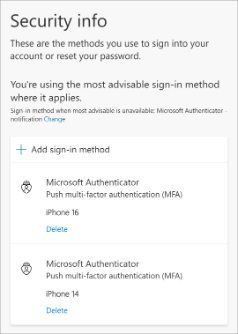
9. Select 'Next' and you will receive an MFA notification on your new device. Approve and enter the two-digit code. You will see your new device added to the list of MFA methods in your Microsoft account - you can now safely delete your old device from the list.
Once you have completed your registration please keep the Microsoft Authenticator app on your device, as you will need it when you want to access University services.