
How to change your authentication method
From 1 February 2027, Microsoft will no longer provide text message or phone call verification as MFA methods, and an alternative authentication method such as Microsoft Authenticator is recommended which offers stronger security while making it easier to access your account.
To change your authentication method from text message or phone call your must follow the instructions on a PC, laptop or tablet.
- Download the Microsoft Authenticator App on your mobile device
- Open your browser and go to https://myaccount.microsoft.com
Login with your University email address, Click Next and then enter your campus password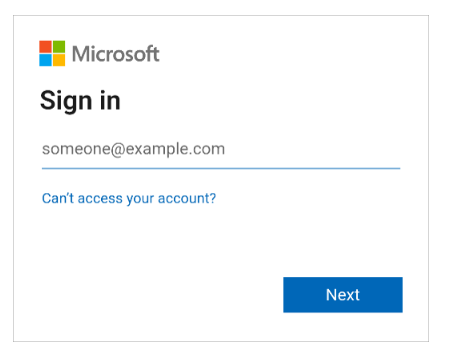
- Once you have verified your authentication using a text message or phone call, you will be redirected to Change how you sign in. Select this option.
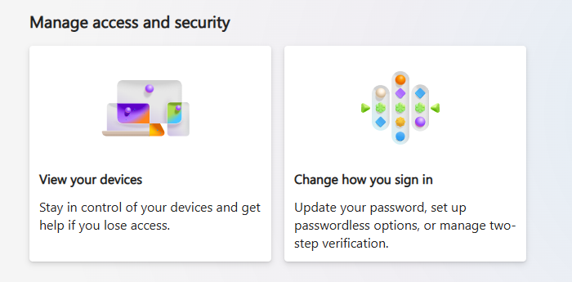
- You will then be prompted to authenticate using text or call.
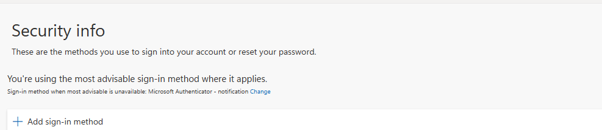
- If you already have Microsoft Authenticator set up as your secondary method, select Change for the Sign-in method when most advisable is unavailable. Select App based authentication - notification from the drop down list Which method would you like to use to sign in? Then refer to Step17 in these instructions.
- If you do not already have Microsoft Authenticator set up as your secondary method, Select Add sign-in method
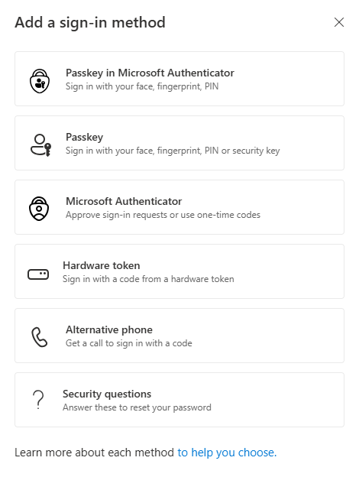
- You will be presented with Add a sign-in method, select Microsoft Authenticator as below (not Passkey in Microsoft Authenticator):
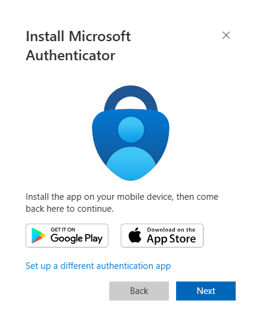
- Install Microsoft Authenticator will appear as below (you have already downloaded this as part of Step 1), click Next.
- Set up your account in app will appear as below, click Next.
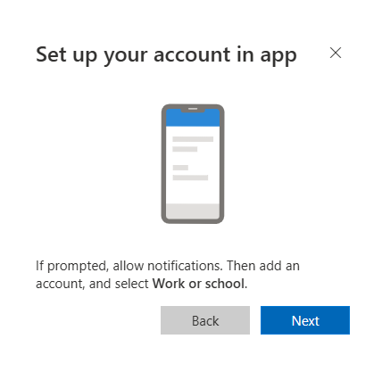
- Open the Authenticator App click Tap on Add account (+ sign). Select Work or School Account and Scan QR Code.
- Scan the QR Code on your computer screen and then click Next.
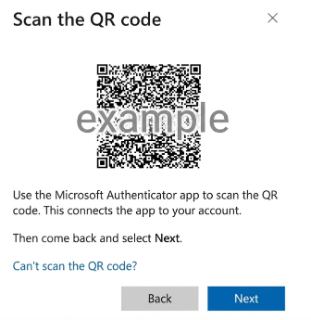
- Approve the notification to the authenticator on your phone and enter the 2-digit number shown on your screen.
- A message should appear confirming your Authenticator is working, select Done.
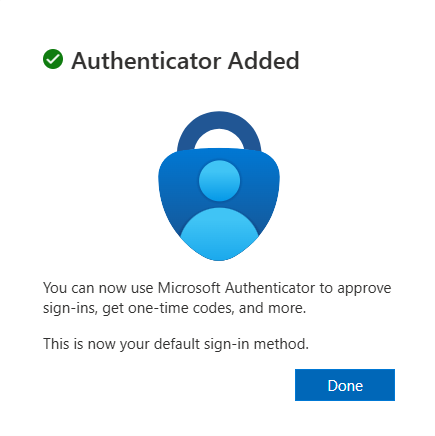
- On your screen, Microsoft Authenticator should appear in your list of MFA methods.
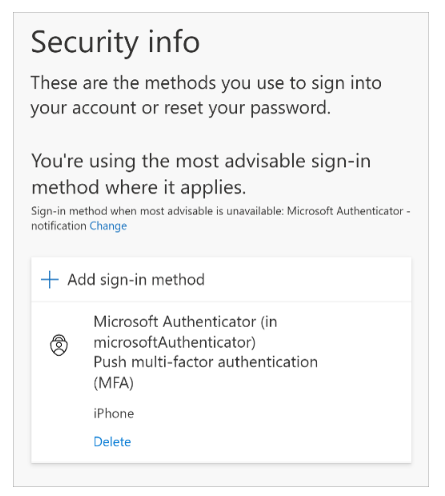
- Once verification is complete, change Microsoft Authenticator your default sign-in method from the Security info page selecting Change. Under the drop down menu Which method would you like to use to sign in, select App based authentication – notification. Select Confirm.
- Your account will then use Microsoft Authenticator as your primary MFA method.
- Select Delete for Phone and OK to the prompt, “are you sure you would like to delete this method from your account?". Your phone number will be deleted from the list of authentication methods.
Once you have completed your registration please keep the Microsoft Authenticator app on your device, as you will need it when you want to access University services.