MFA set up method one (recommended)
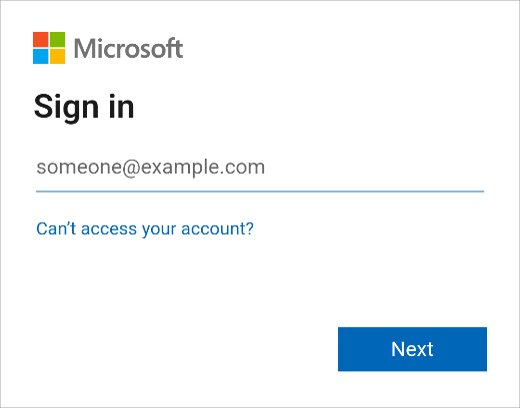
If you are setting MFA up for the first time, you can complete the registration from your mobile phone.
Step 1
Step 2
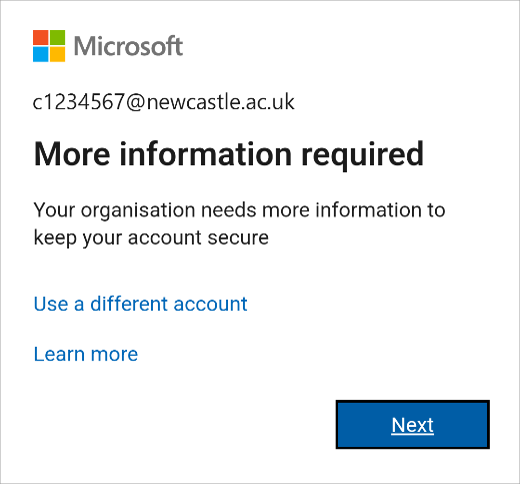
Enter your password and you should see a screen titled More information required; click Next. (If you don’t see this page, go back to step 1 using a private browser)
Step 3
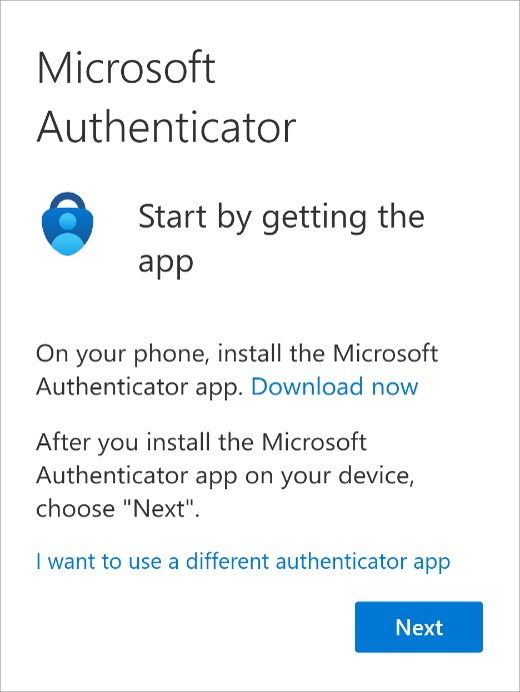
If you have not installed the Authenticator app, use the download now link to install the app. Then click Next.
Step 4
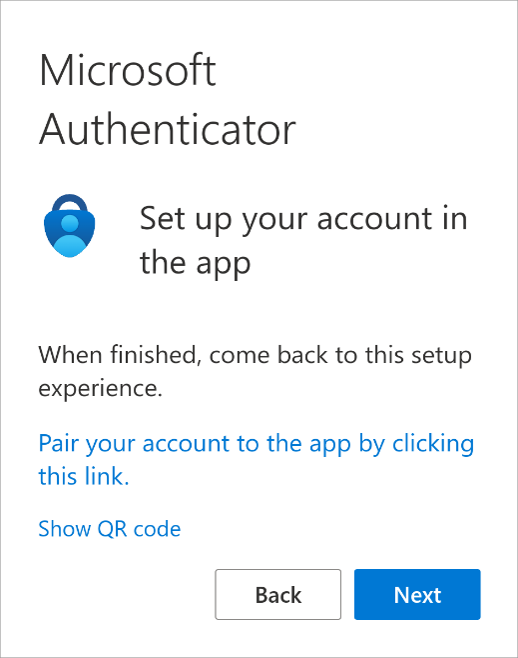
On the following screen, tap on the link beginning Pair your account to the app.
Step 5
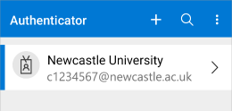
The Authenticator will then open, and your Newcastle University account will be added to the list of accounts.
Step 6
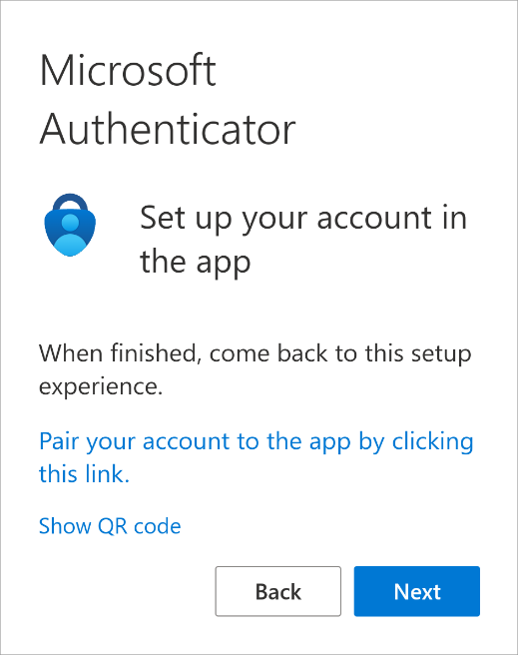
Switch back to your browser and click on Next.
Step 7
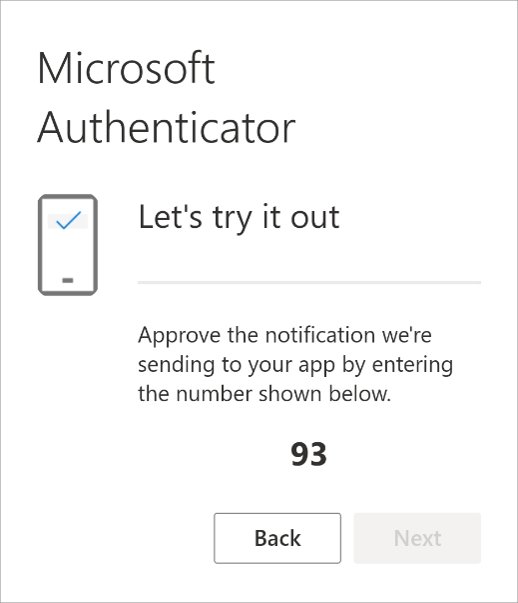
Approve the notification to your phone and enter the 2-digit number shown on your screen.
Step 8
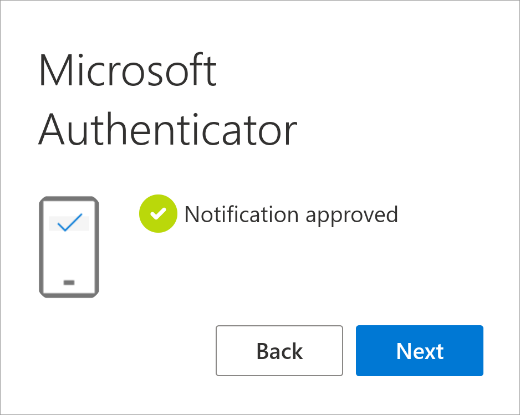
A message should appear confirming your Authenticator is working:
Step 9
Select the option to stay signed in and click on Done.
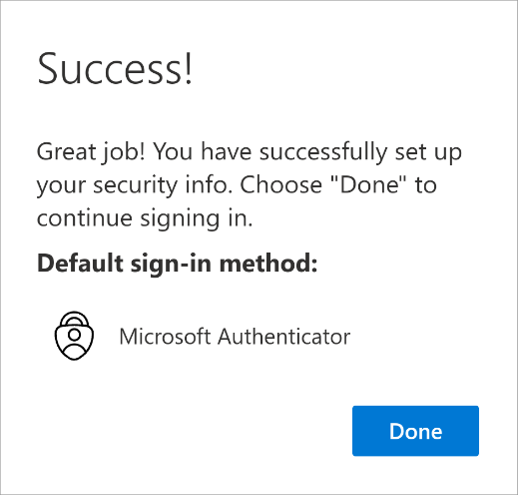
Once you have completed your registration please keep the Microsoft Authenticator app on your device, as you will need it when you want to access University services.
Step 10
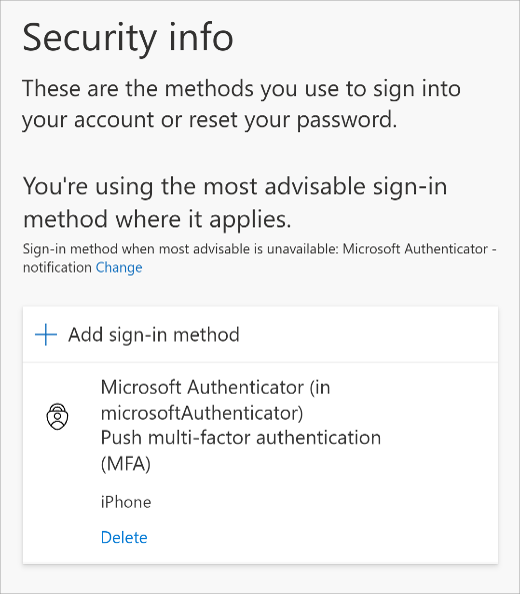
Microsoft Authenticator should appear in your list of MFA methods.