
MFA set up method two (alternative)
Use this guidance if you want to set up MFA using a second screen.
We recommend you download the MFA Authenticator App onto your mobile phone
Step 1
- On your PC, laptop or tablet, open a browser and go to https://aka.ms/mfasetup
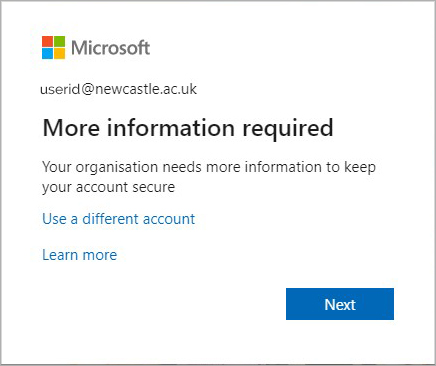
- If prompted, log in with your email "Firstname.lastname@newcastle.ac.uk" or "userid@newcastle.ac.uk"
- You will be prompted to provide more information
- Select Next
Step 2
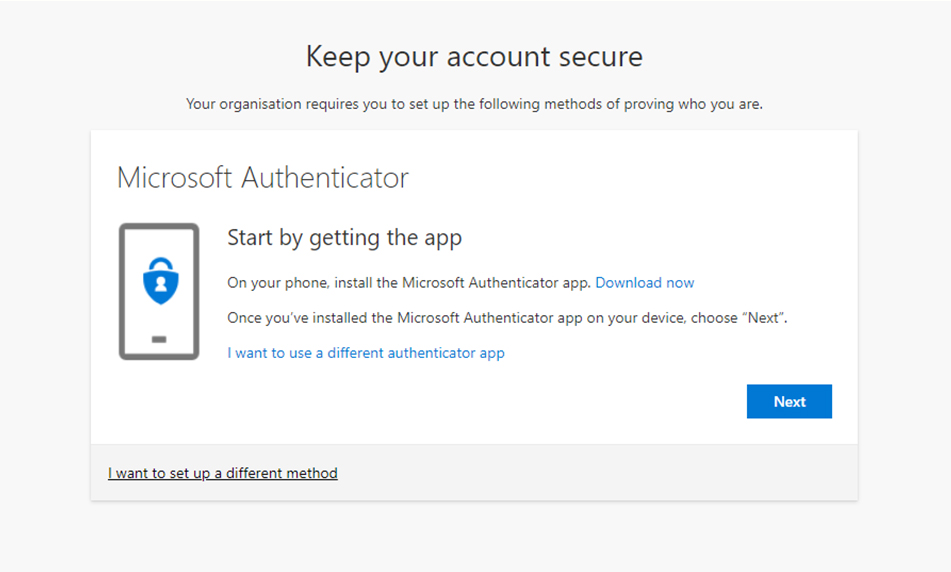
- On your phone, install the Microsoft Authenticator app. It's available from Google Play, the Apple App Store, or the Microsoft App Store.
- Once you've installed the Microsoft Authenticator app on your device, choose Next.
Step 3
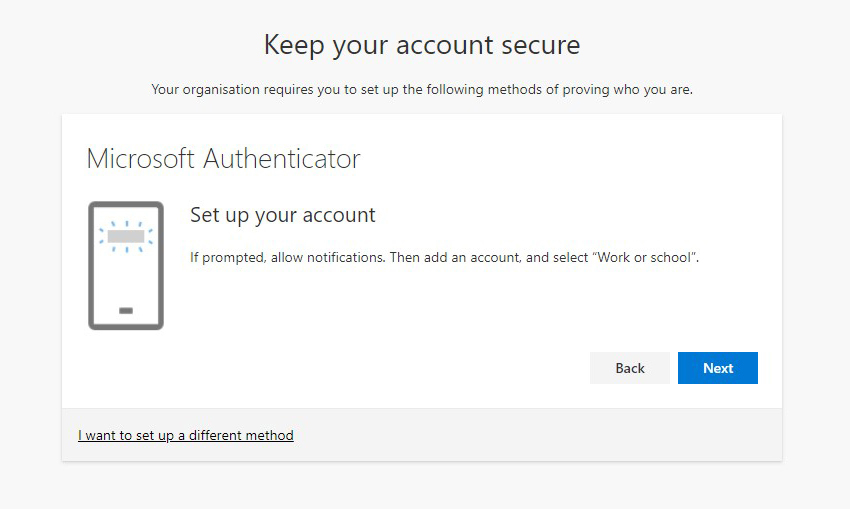
- Open the Microsoft Authenticator app on your mobile device
- Select to add a work or school account (you may need to skip the screens to "add a personal Microsoft Account" or "add a non-Microsoft account")
If you have previously installed the Microsoft Authenticator app on your device:
- Tap on Add account (+ sign)
- Select Work or School Account
Step 4
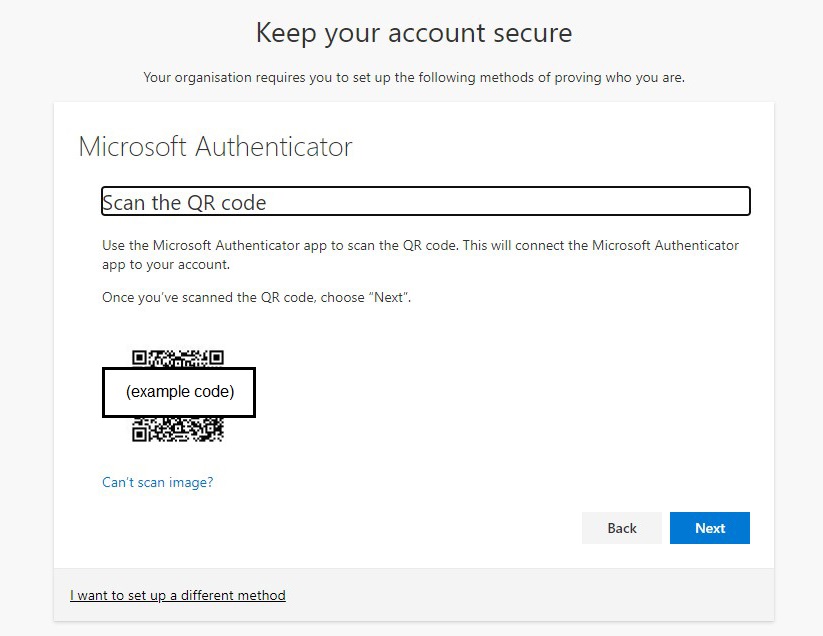
- Use the Microsoft Authenticator app to scan the QR code on your PC screen. This will connect the Microsoft Authenticator app to your account.
- Once you've scanned the QR code choose "Next". (Please note: The QR code located in the below guide is only an example and not one to be scanned)
Step 5
- Approve the notification sent to your app
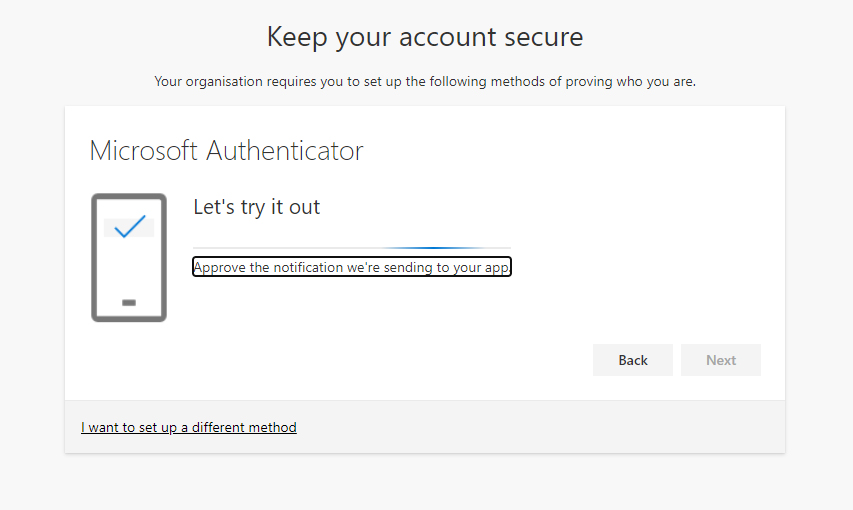
Step 6
Notification Approved
- Select Next
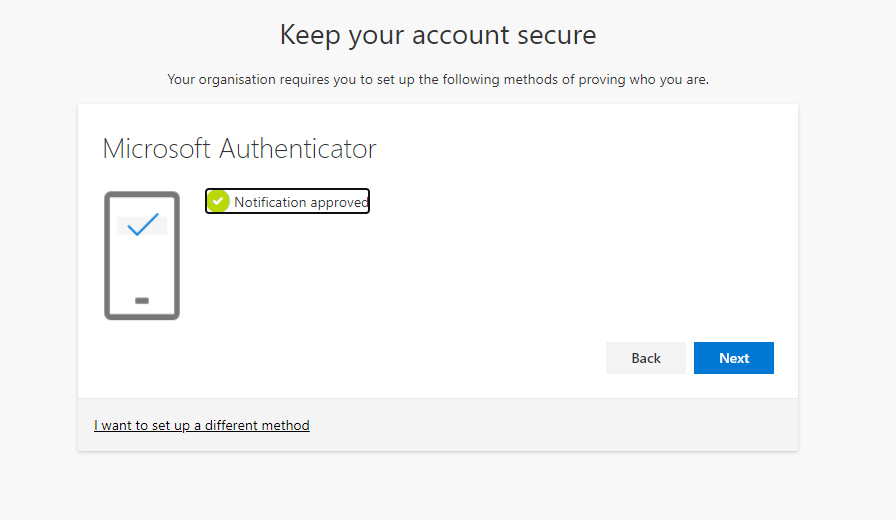
Step 7
Success!
- You have successfully set up your security info
- Choose Done to continue signing in
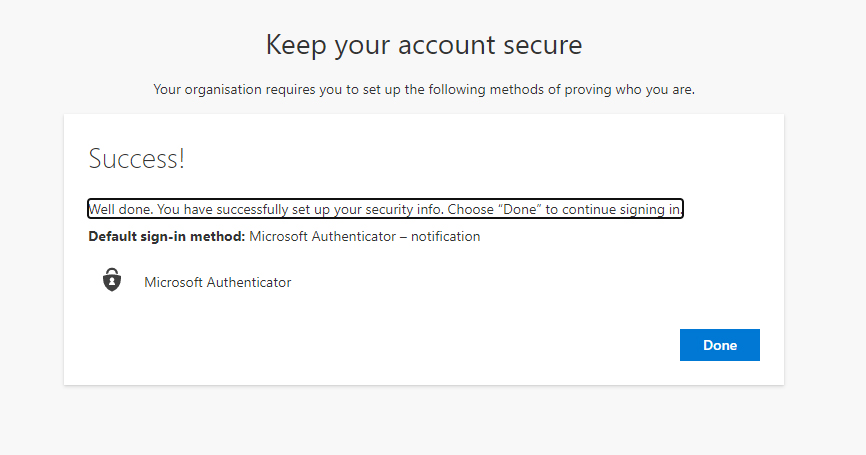
Step 8
Security Info
- In future, you will receive a notification to approve your sign-in from the Authenticator app.
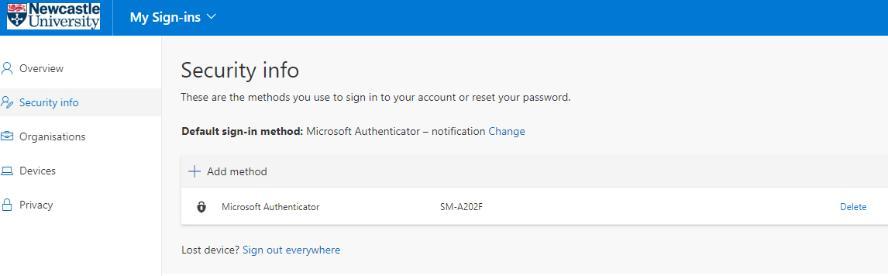
Once you have completed your registration please keep the Microsoft Authenticator app on your device, as you will need it when you want to access University services.